Older and younger presets
Jump forward or back by named steps such as 20 years older, 10 years younger, teenager, or elderly — without writing a prompt.
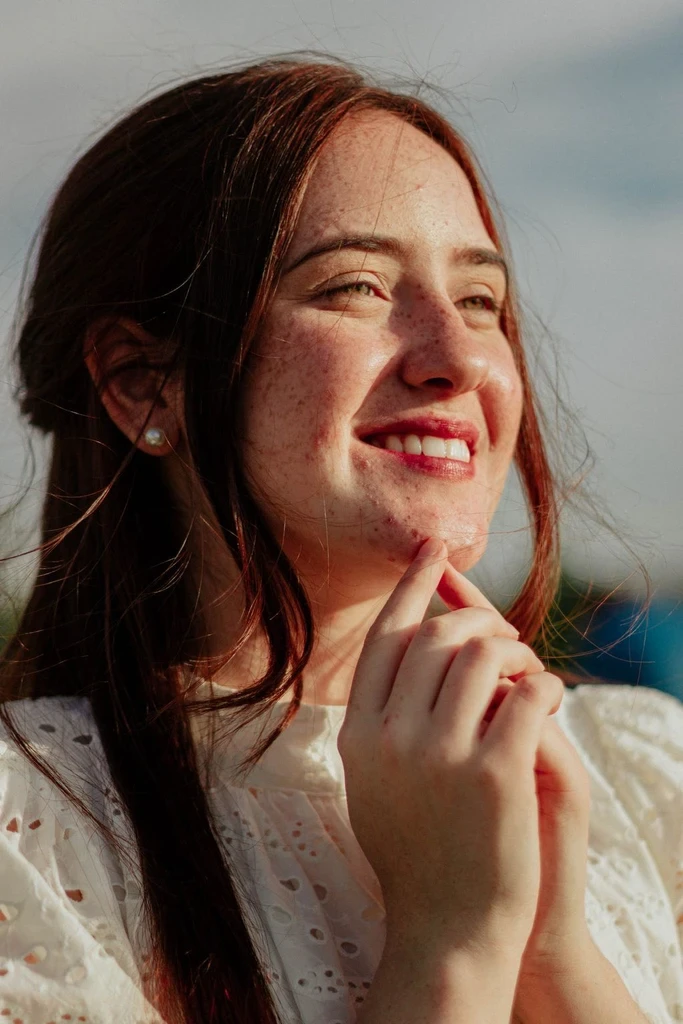
See a portrait older or younger while keeping identity. Choose a named age change, then download the result.
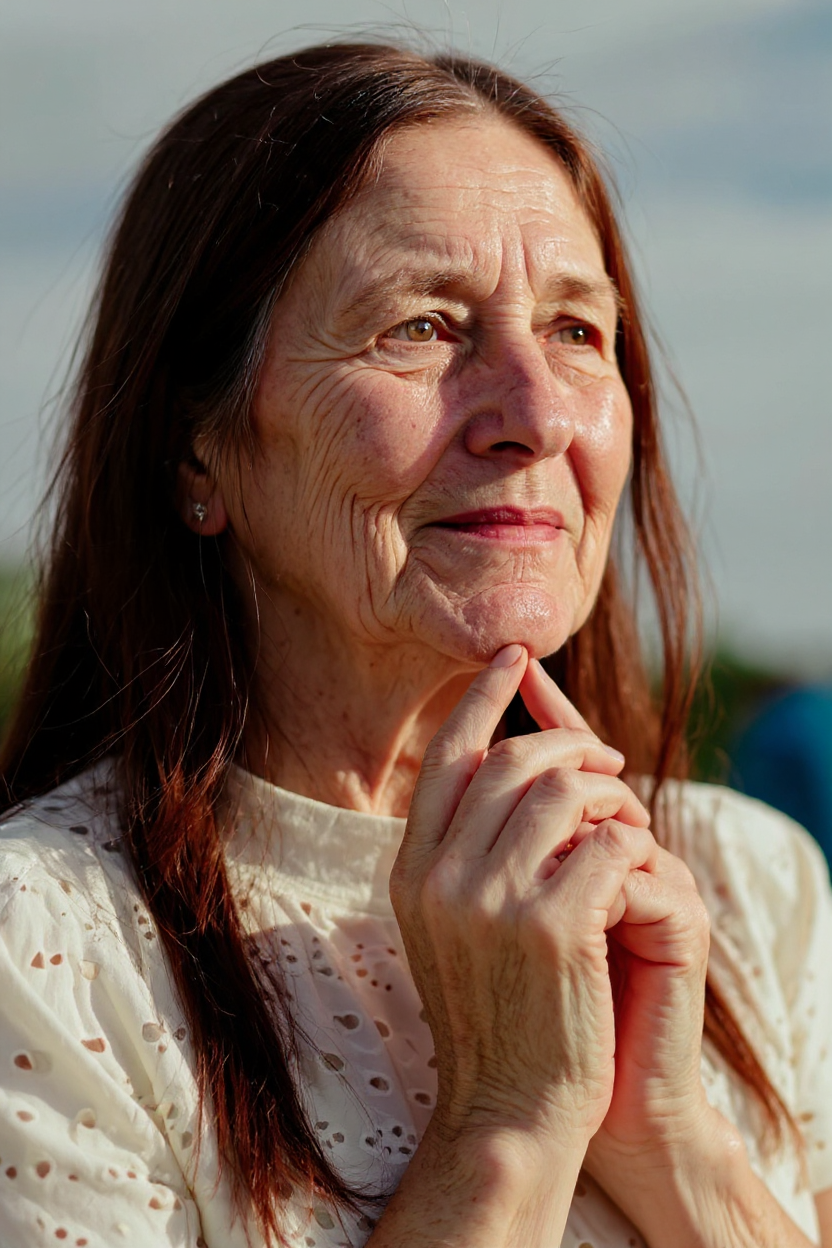
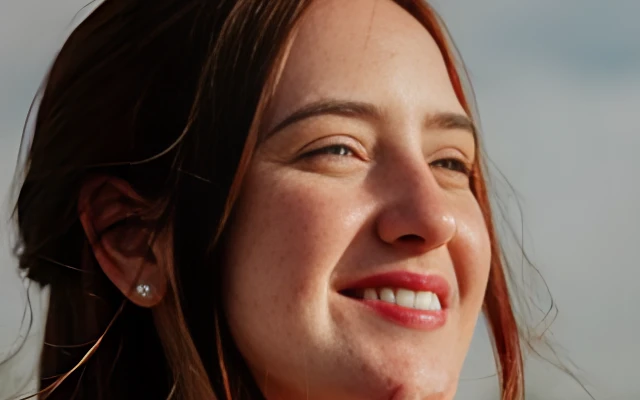
This run used the “20 years older” setting. Compare changes in wrinkles, hair and expression using the buttons.
This is an age-appearance simulation. Facial details and expression may change; it does not establish an exact future age or appearance.
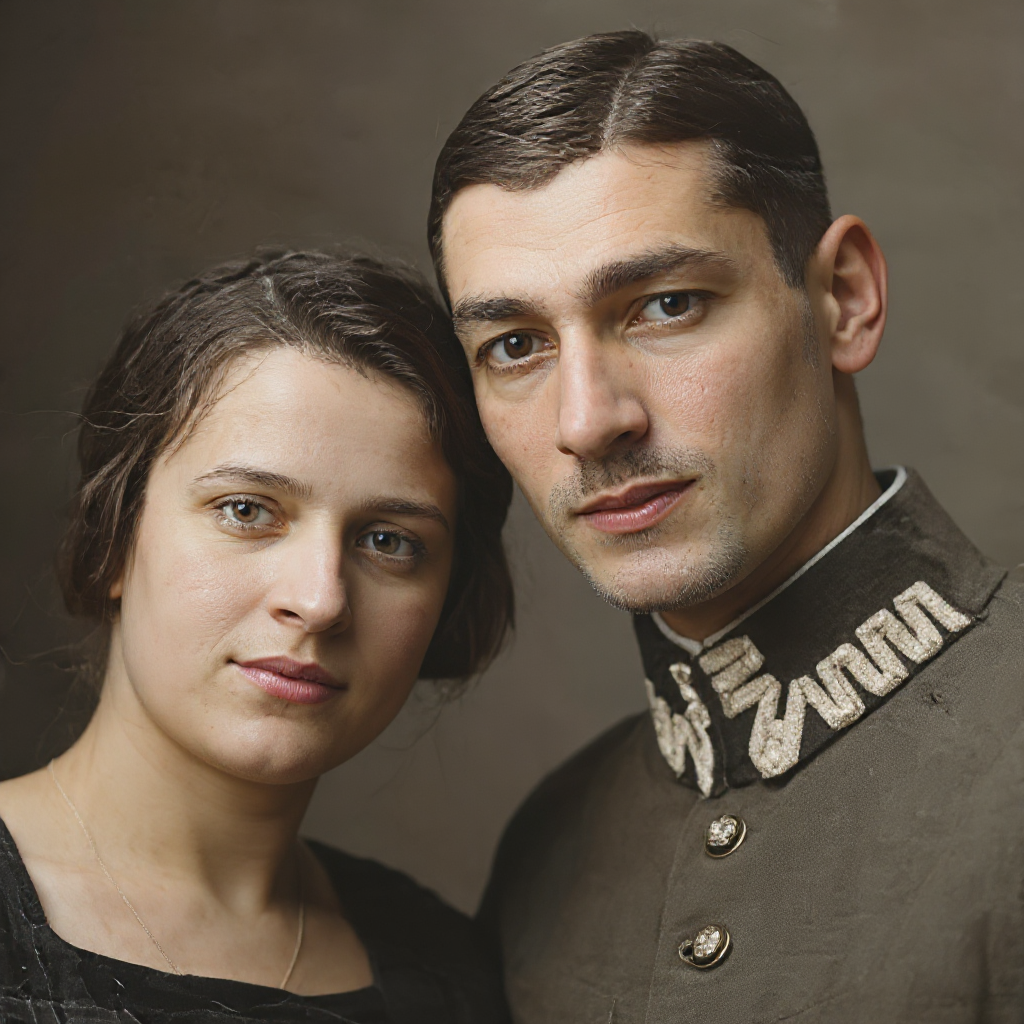
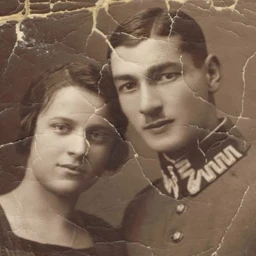
Everyday personal portrait workflows — restore a print, set background and light, retouch makeup and hair, then finish a career headshot.
 Before
 Before
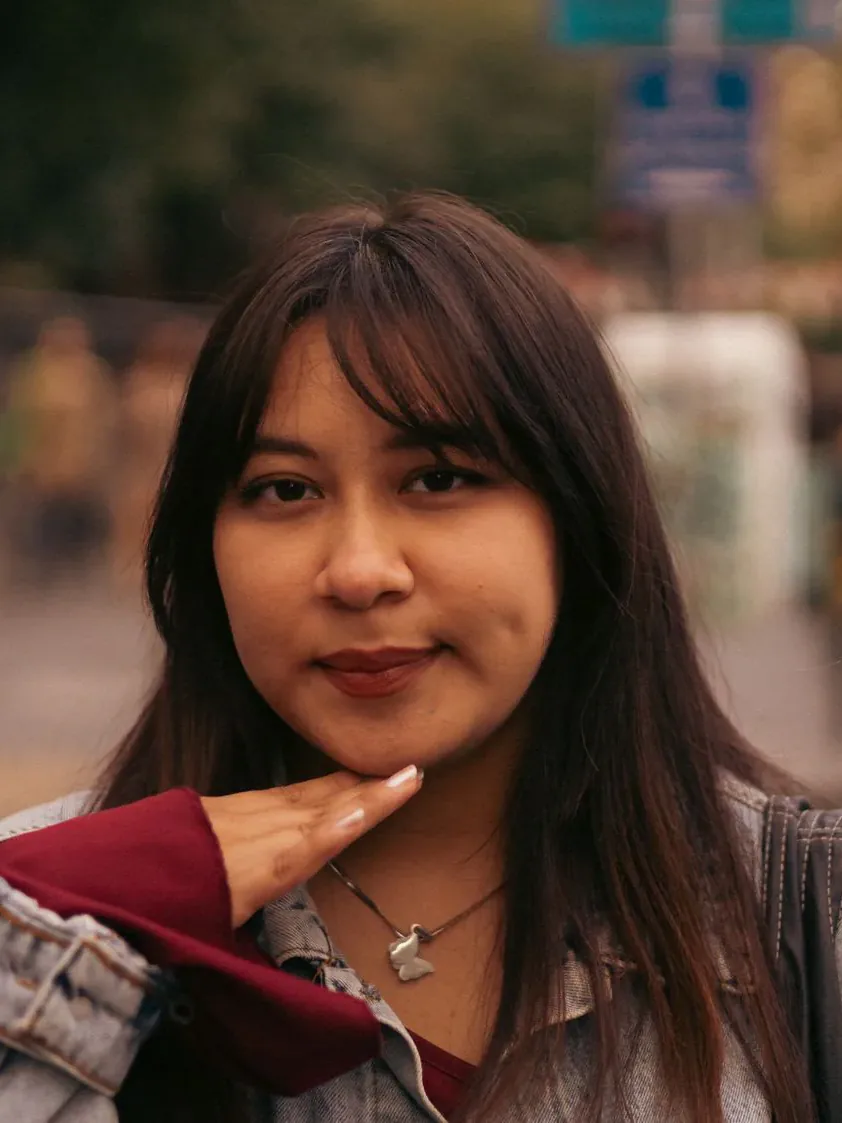 Before

 Before
Upload a photo, pick an age change, download the progressed portrait.
Use a clear, front-facing photo of someone you have permission to edit. JPG, PNG and WebP are supported.
Select a named preset such as 20 years older, 20 years younger, or elderly. Safety checks stay on.
Run the change, compare with the original, and download when the age and identity look right.
Named age presets on one portrait — identity first, age second.
Jump forward or back by named steps such as 20 years older, 10 years younger, teenager, or elderly — without writing a prompt.
The model aims to keep recognizable facial structure while adding or removing age cues.
The default previews you 20 years older. Compare the generated facial details with your source photo.
Age presets, credits, reviewing results, consent, and privacy.
Upload a portrait and preview a named age change with AI.