Identity stays in the frame
Color is inferred for skin, hair, and clothing. Facial structure, age, and who is in the photo stay locked.
Colorize a black-and-white or faded family print while keeping the same people — pair with restoration, not instead of it.
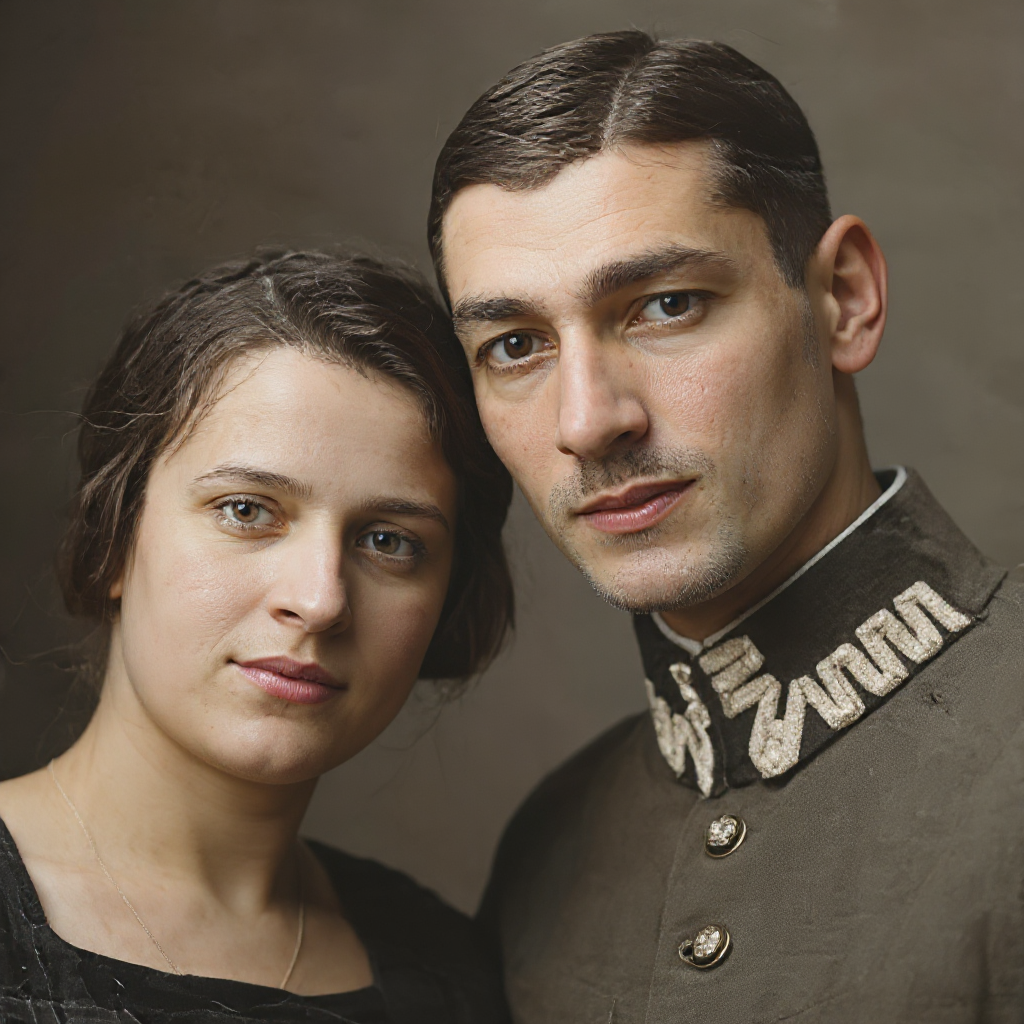
Before and after adding natural color to a faded black-and-white photo. Faces and details stay intact; skin, clothing and scenery gain believable tones.
Colorization example on a vintage print. Results vary with scan quality and damage level.
Everyday personal portrait workflows — restore a print, set background and light, retouch makeup and hair, then finish a career headshot.
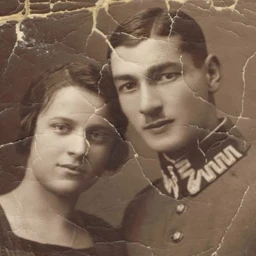 Before



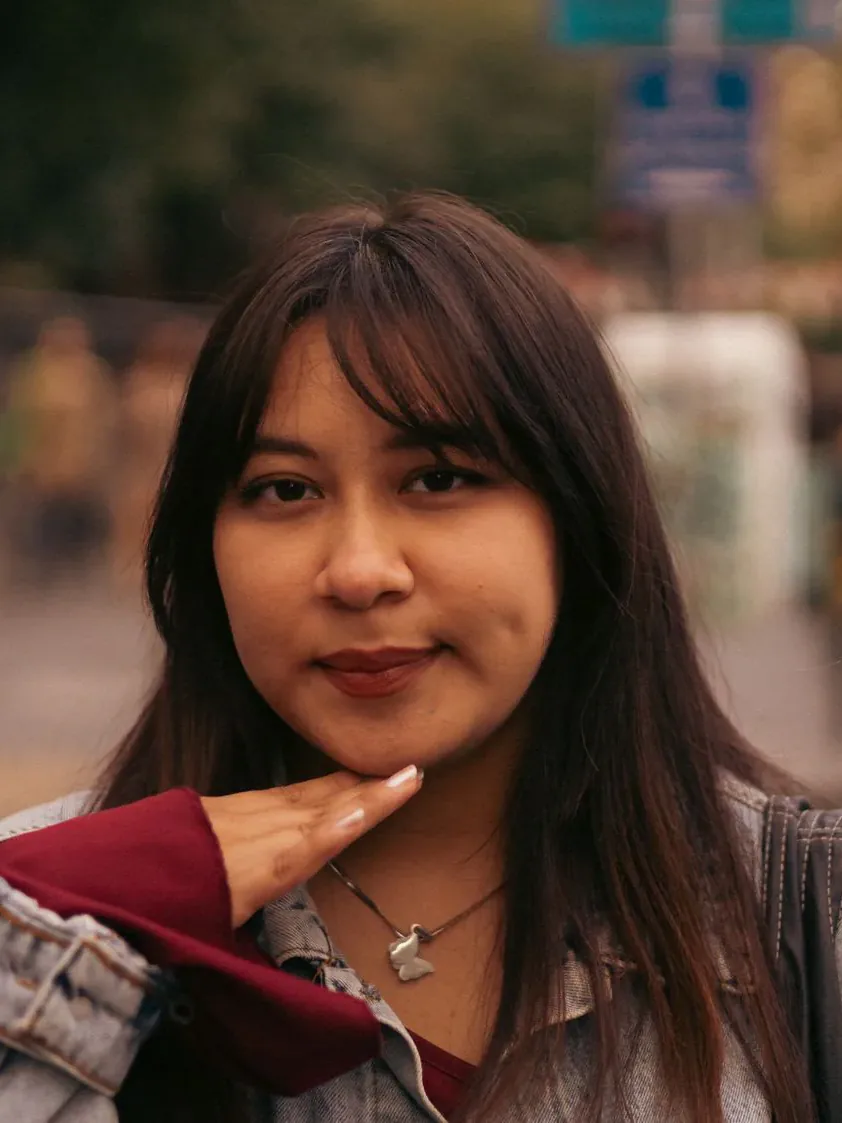 Before

 Before


Repair the print, upload, pick a color look, download.
If the scan is scratched or torn, run Old Photo Restoration first. Colorizer does not rebuild missing paper.
Choose natural, warm family print, or muted archival. JPG, PNG and WebP are supported.
Check faces, clothing, and identity, then download. Keep the uncolored original.
Bring faded or black-and-white portraits back into color without swapping whose faces they are.
Color is inferred for skin, hair, and clothing. Facial structure, age, and who is in the photo stay locked.
Scratches and paper damage belong in Old Photo Restoration. Colorizer is the color step after the print is repaired.
Hues can look plausible and still be wrong. Keep the original scan; do not treat the result as a verified record.
Restore order, credits, identity, and how this differs from Old Photo Restoration.
Upload a black-and-white or faded portrait and add inferred color.