Product photography, from a source photo to a reviewed image set
Start with a clear product photo. Clean it, choose a packshot or scene, explore apparel and color variants, then review and download the images you need for your store or campaign.

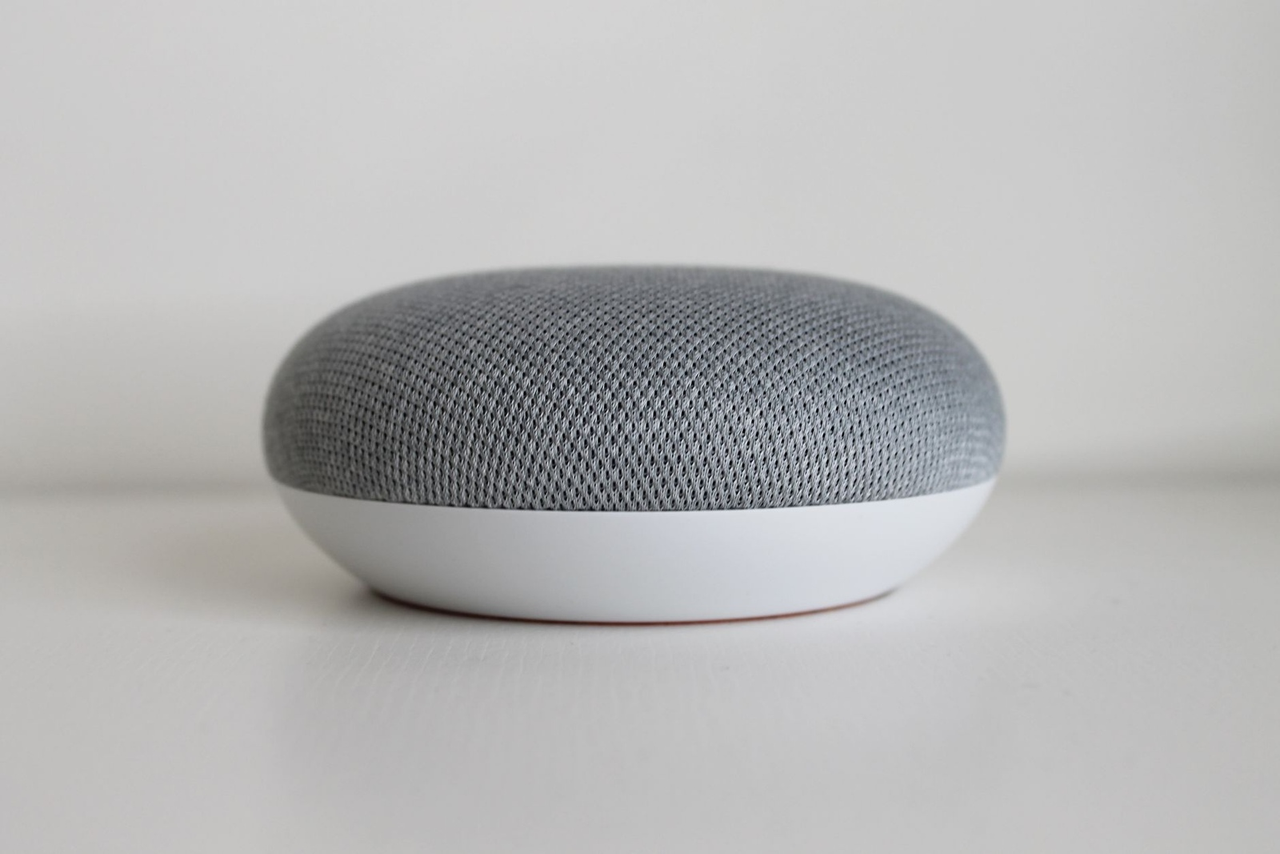
Speaker
Before and after: a product shot with warm golden relighting for listings. Drag the slider to see lighting and background polish on a speaker photo.
Packshots and clean cutouts
Standard packshots, background removal, retouch, and shadows on a prepared cutout.
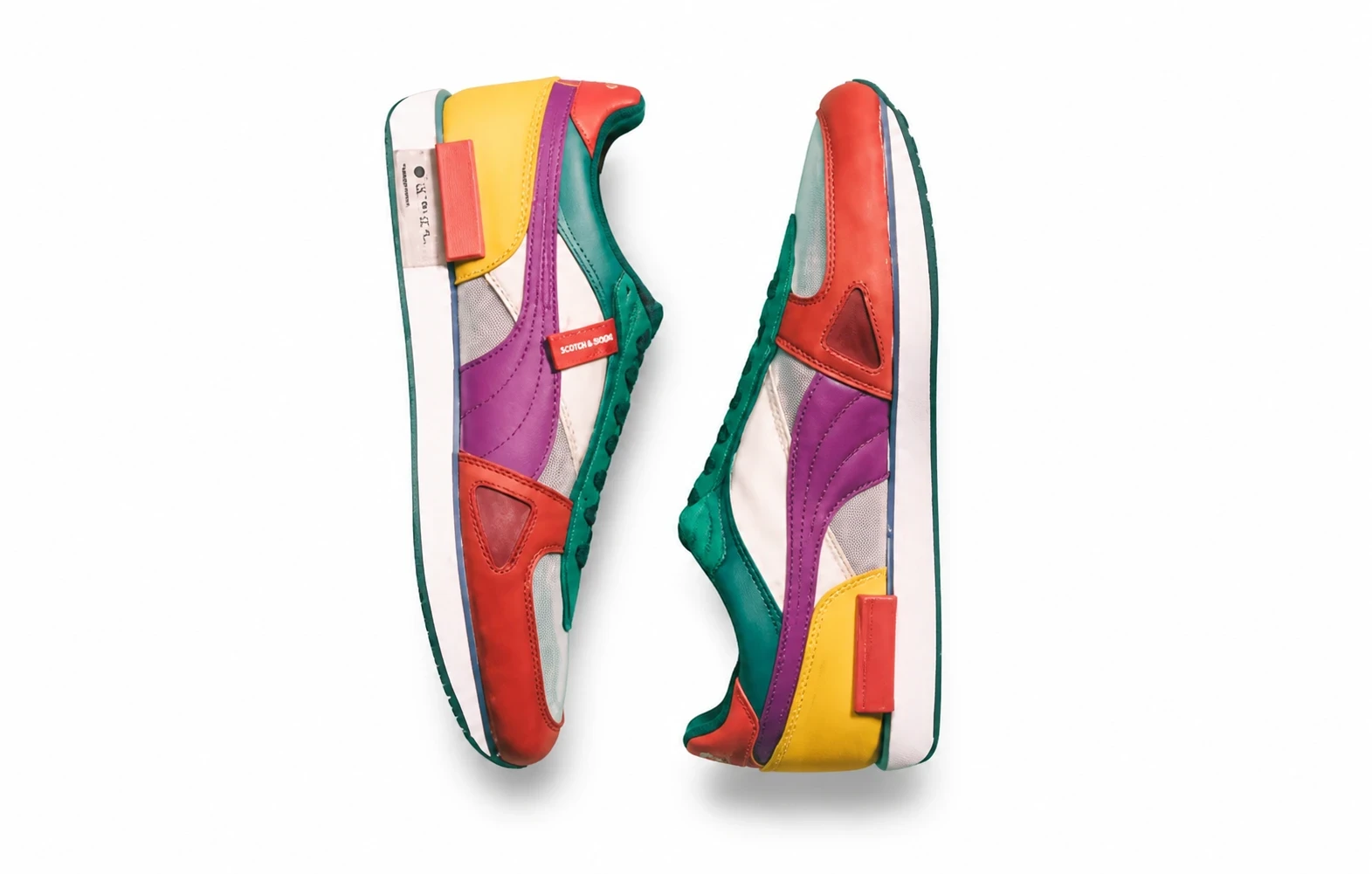 AI Product PhotographyCreate and edit product photos with backgrounds, lighting, staging, shadows, retouching and color previews.ImageFeatured
- BeforeAfter
 AI Background RemoverCut out backgrounds in one click with AI Background Remover. Preview transparent, white, or custom fills, then download a clean PNG.ImageFeatured
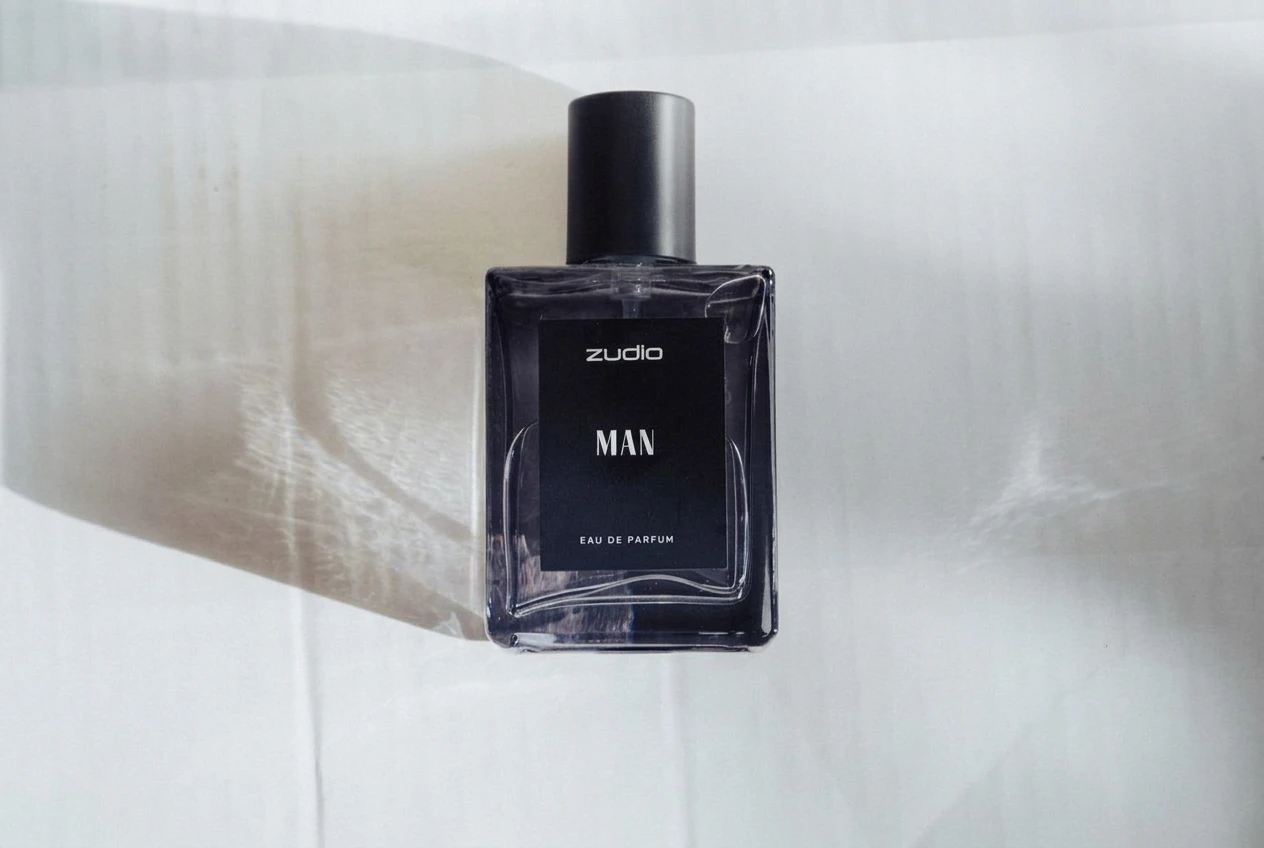 AI Product Photo RetouchingClean dust and minor blemishes in a product photo.Image
- After
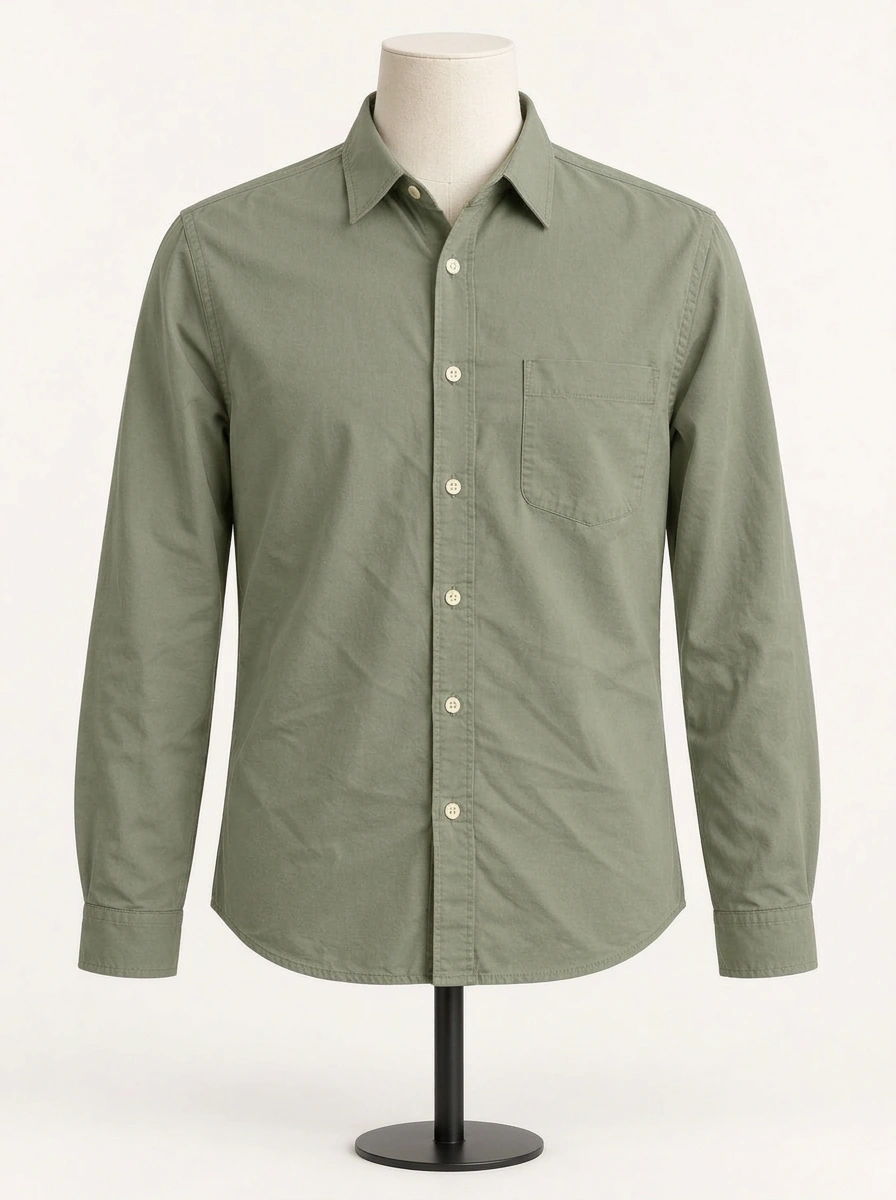
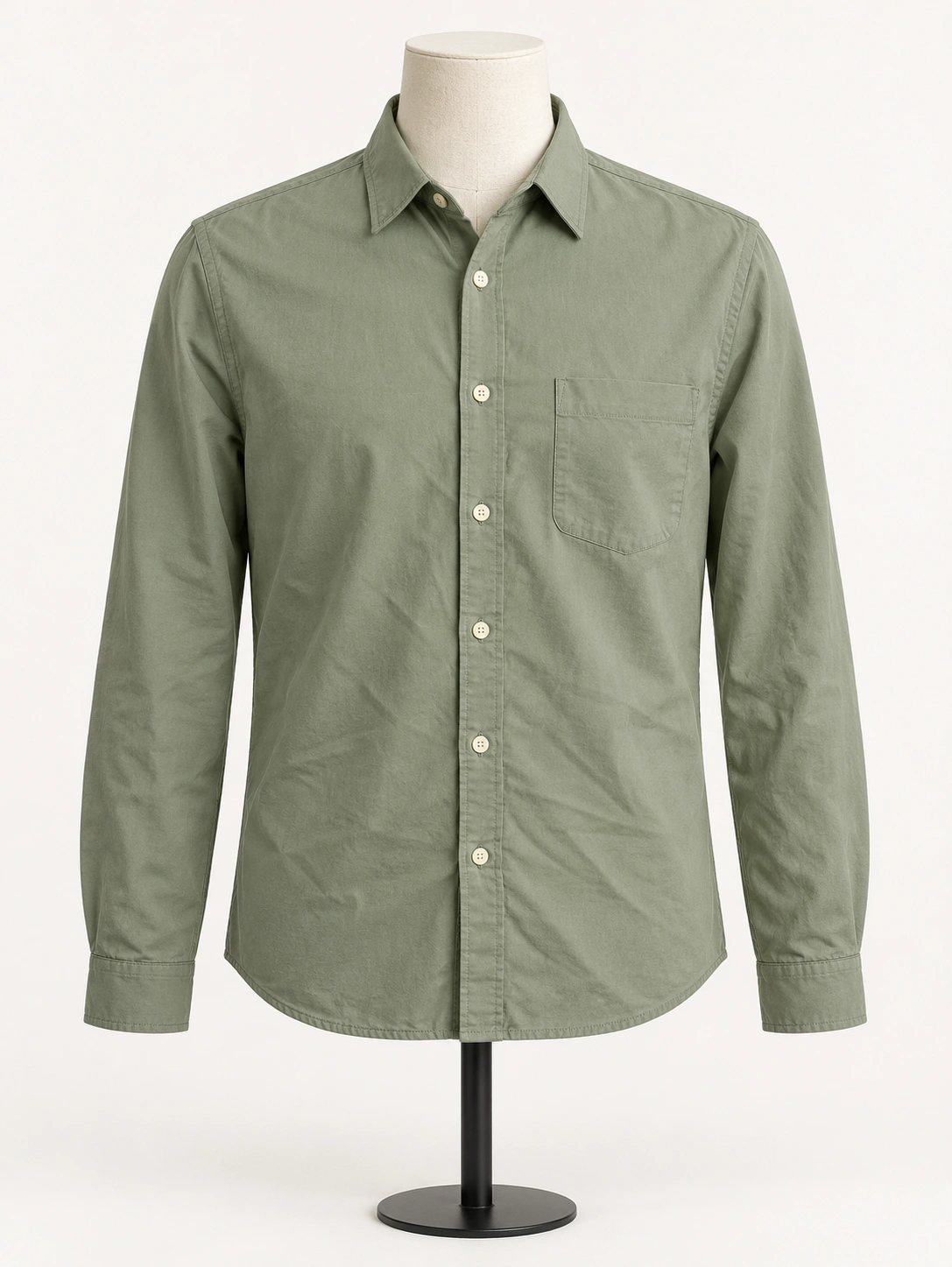 BeforeAI Garment IroningRemove clothing wrinkles for catalog product photos while preserving cut, fabric and color. Catalog garment repair — not a beauty filter.Image
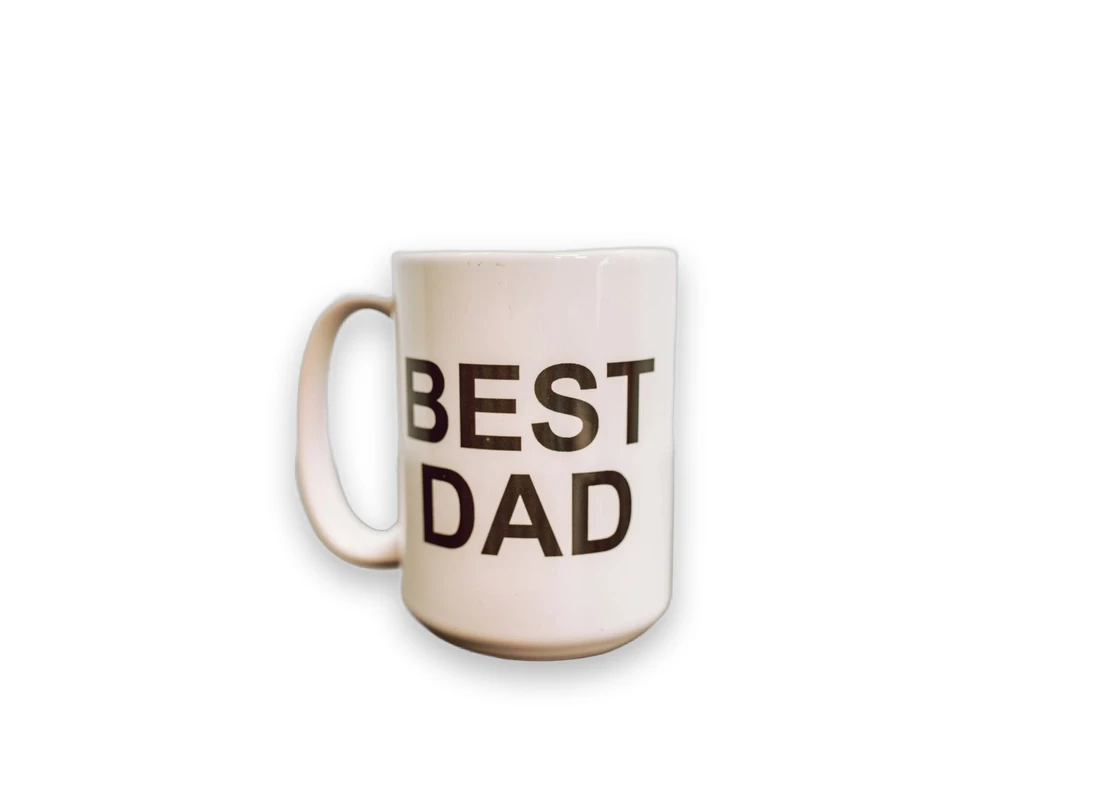 AI Product Shadow GeneratorAdd realistic AI product shadows — Soft, Hard or Floating drop shadows — to shadow-free cutouts for catalog and marketplace listings.Image
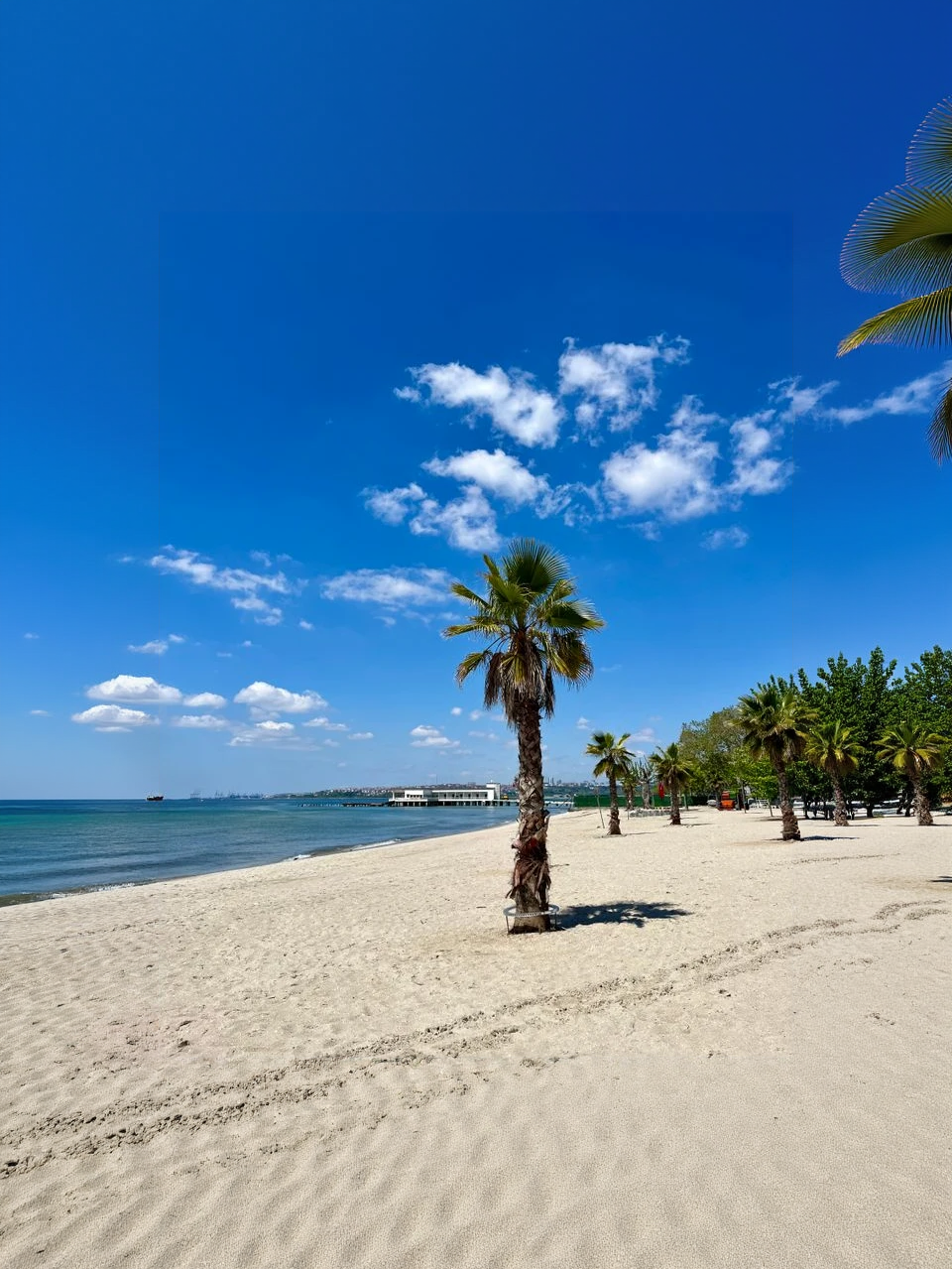 AI Image ExpanderExtend an image beyond its frame with matching scene detail.ImageFeatured
Scenes, light and placement
Generated backgrounds, your scene photo, relighting, and creative compositions.
 AI Product Background GeneratorChoose a preset, describe a background in English or upload a reference image.Image
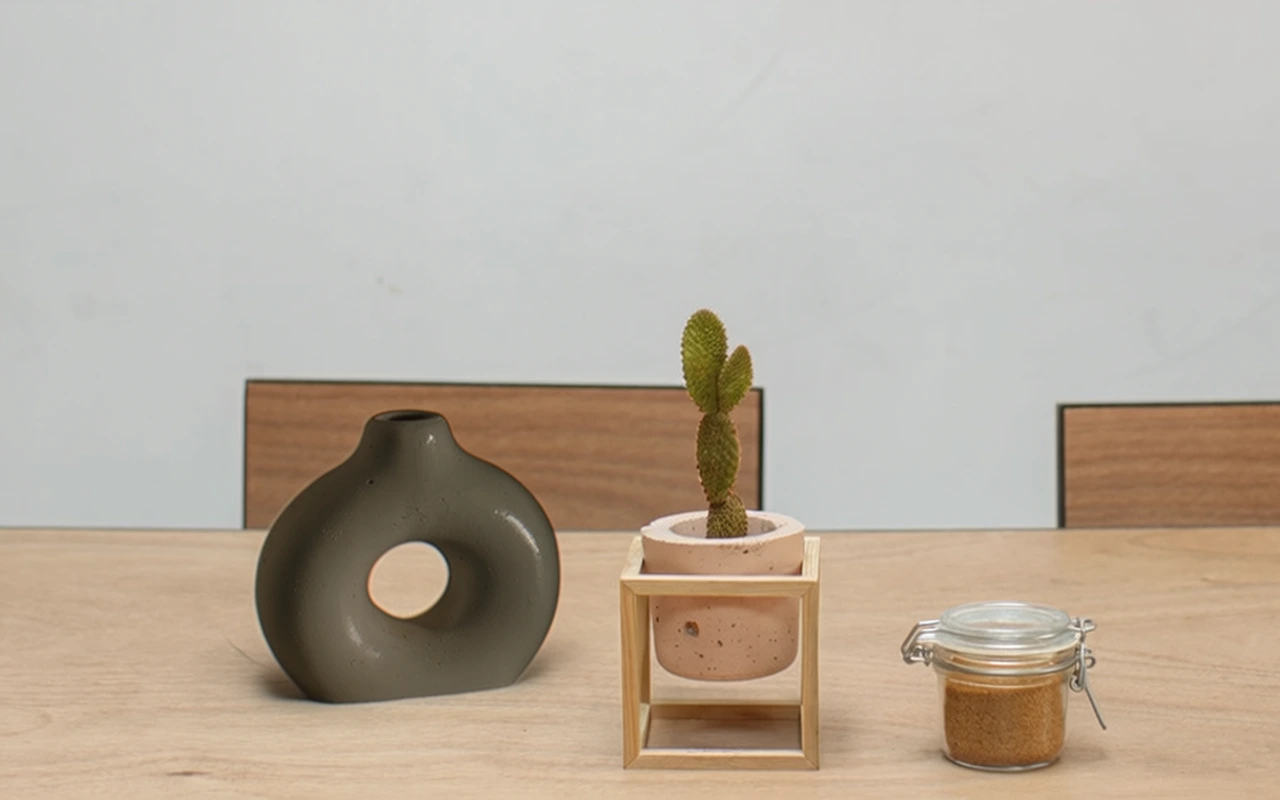 AI Product StagingPlace your product in a scene you choose. Upload a product photo and a scene, then guide position and scale for storefront and campaign concepts.Image
- BeforeAfter
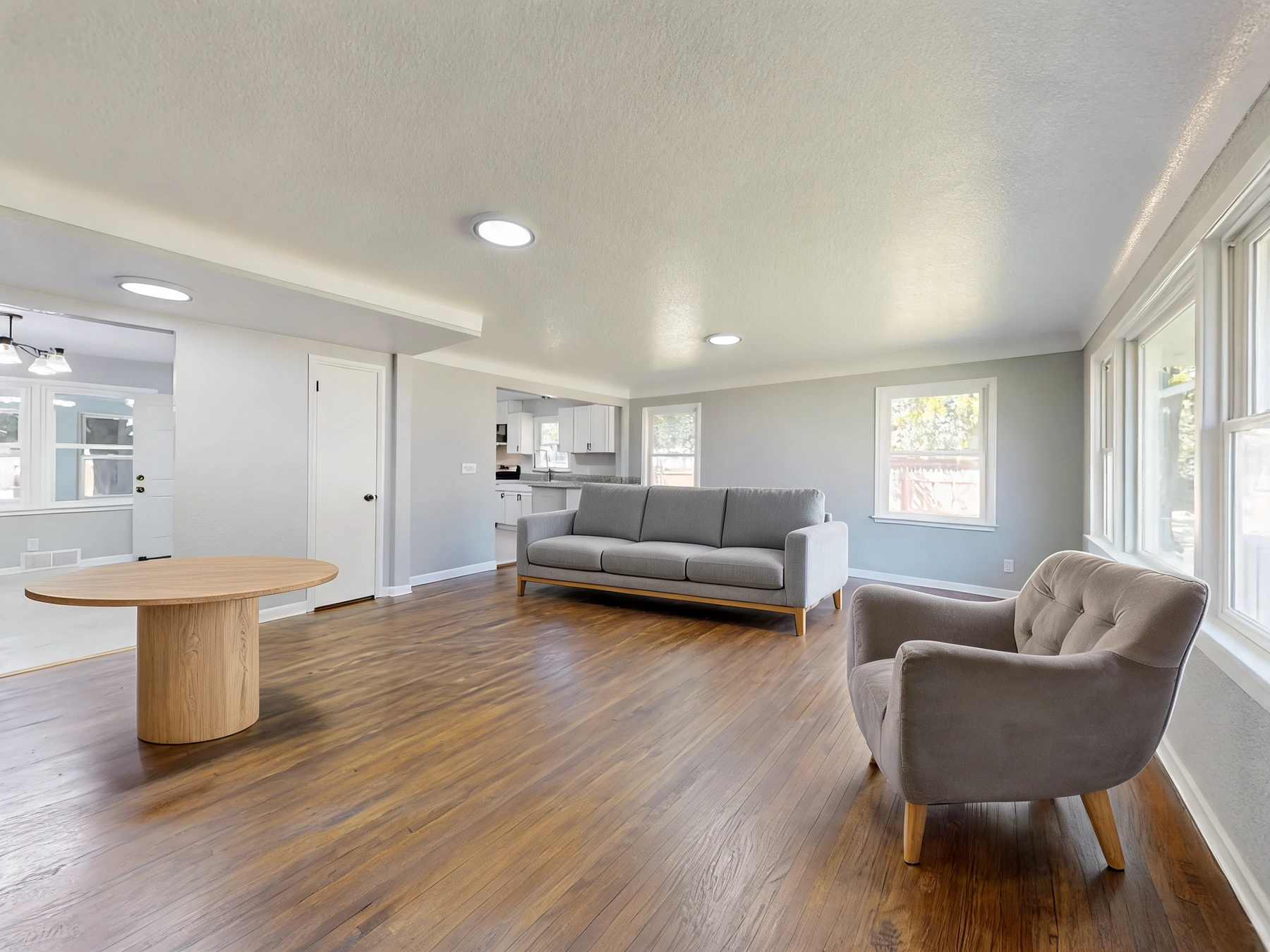
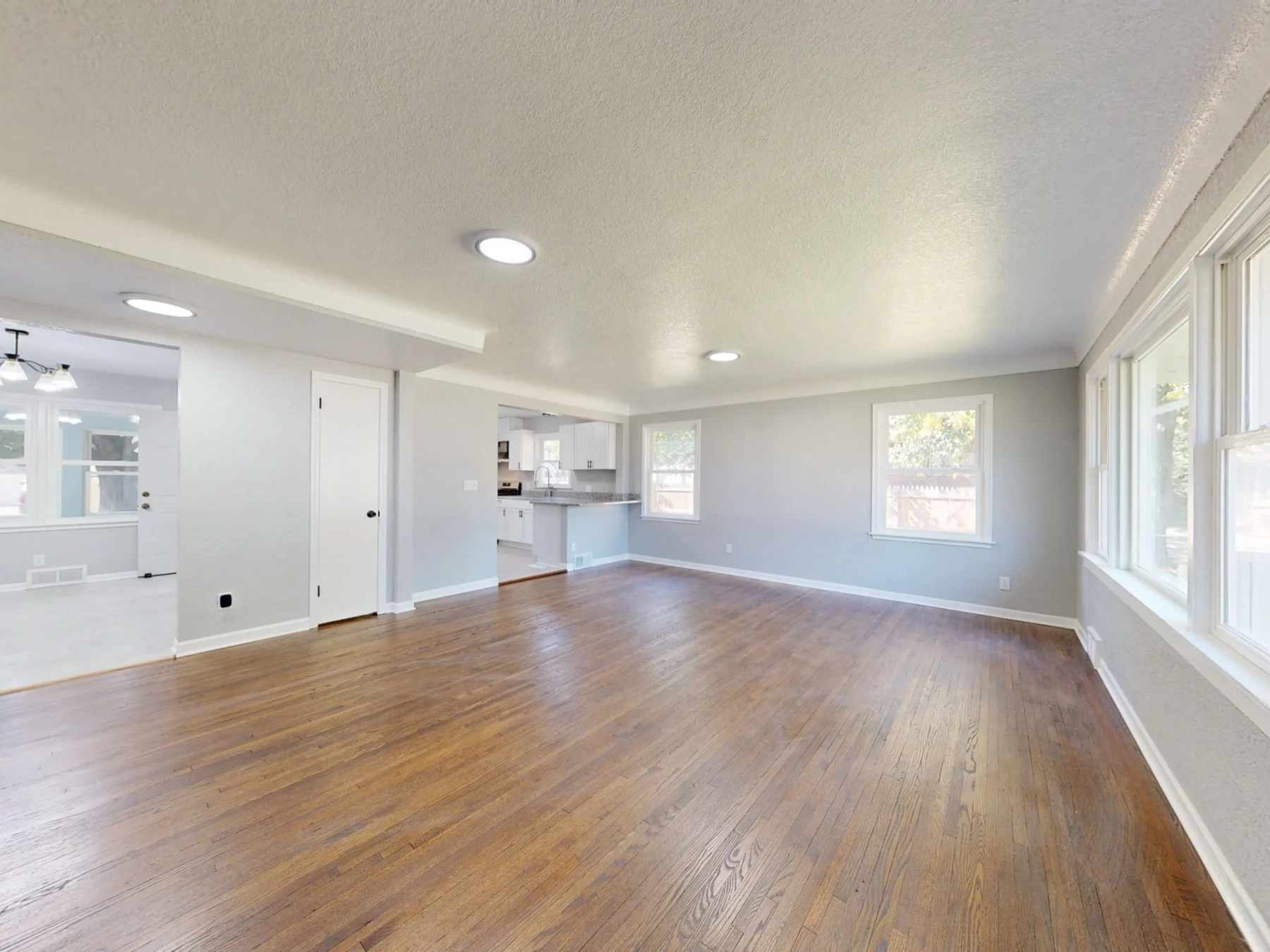 AI Furniture VisualizerUpload a room and one to three furniture photos to preview a furniture set, place your products in a real interior, or swap a piece while keeping the scene.Image
 AI Product RelightingChange the lighting in your product photo. Choose from six styles and five aspect ratios to explore a new look for store content and social campaigns.Image
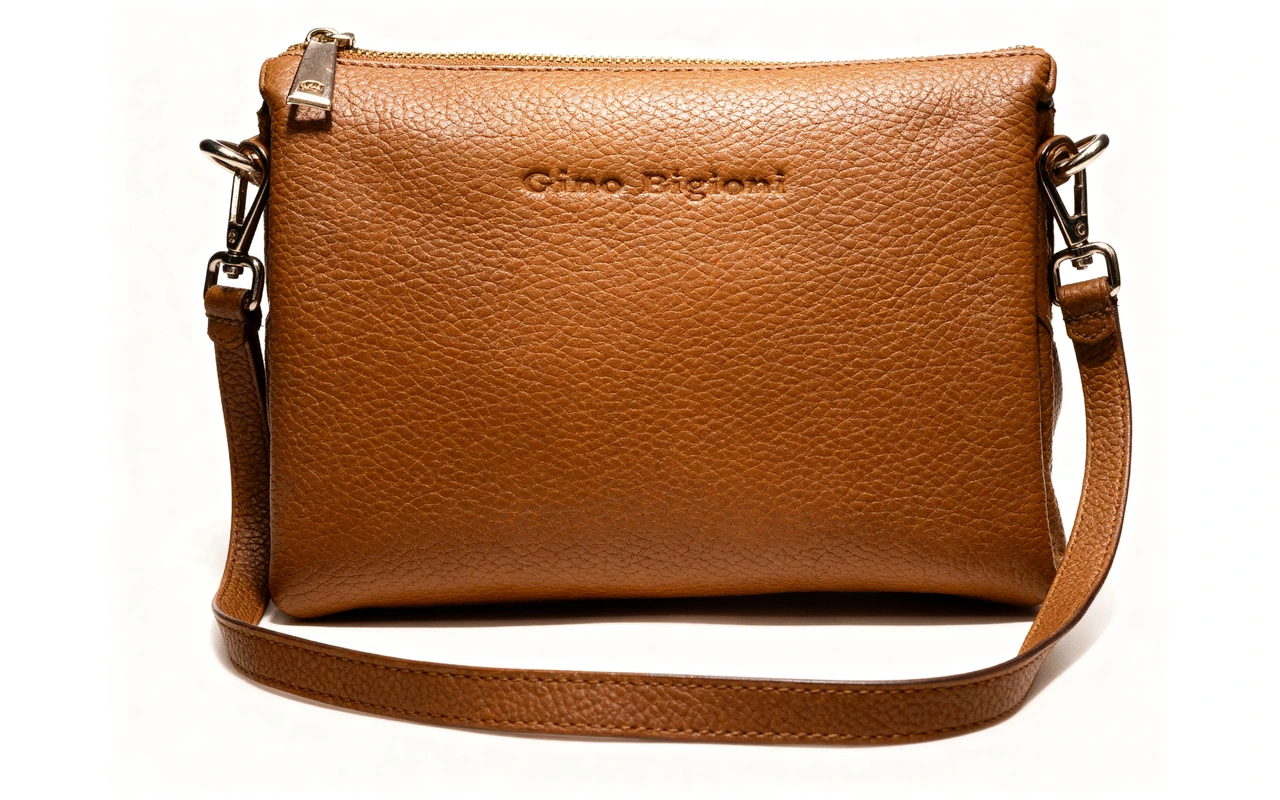 Creative Product PhotographyExplore a new product photography concept from one photo. Upload your item, choose an aspect ratio and let the tool create a new composition.Image
Apparel, color and furniture
Garment shots, color previews, and in-room furniture—compare every result with the real item.
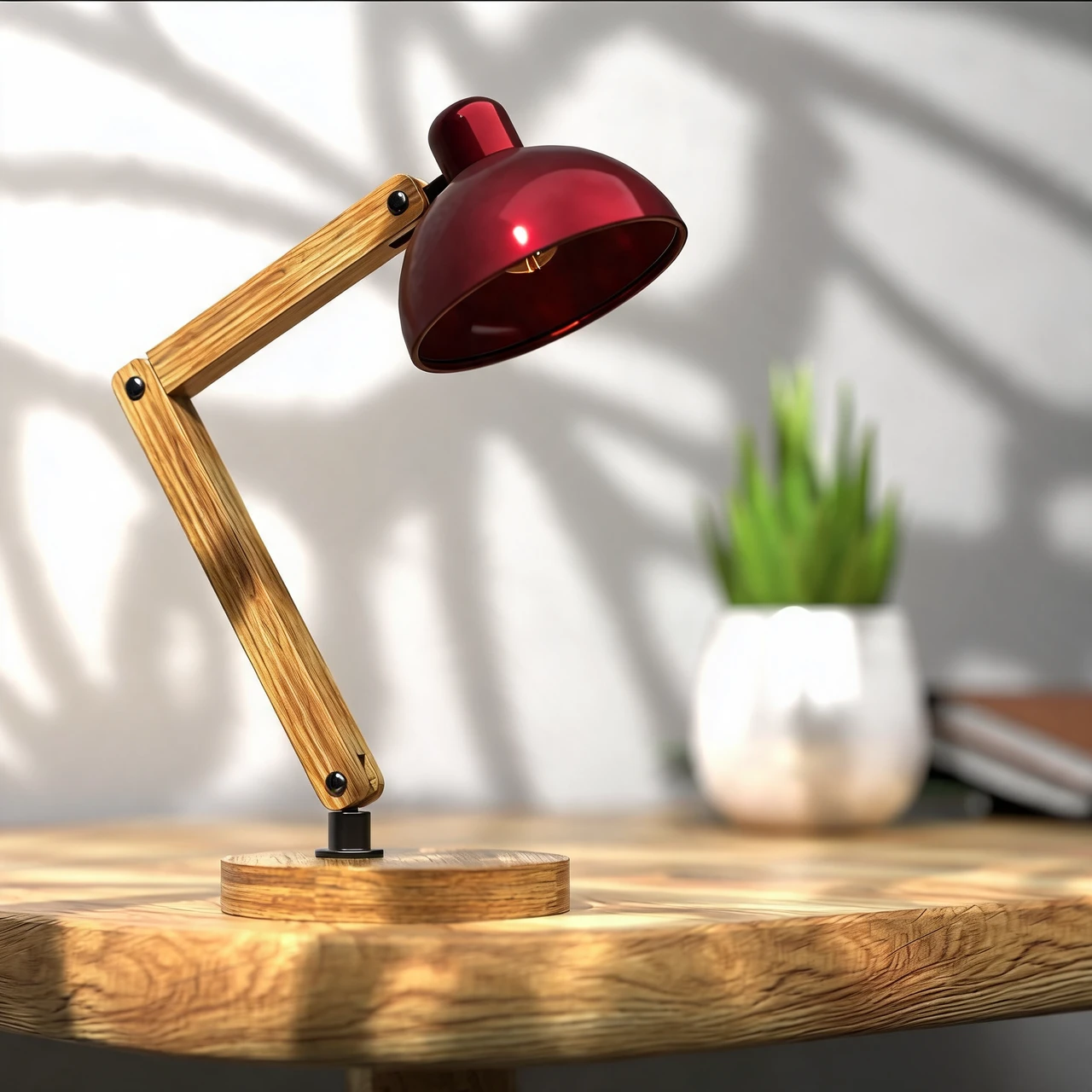 AI Product RecolorPreview a new product color or apply a fabric and material swatch to the selected part. Try sofa upholstery or other product finishes without changing the intended product shape.Image
- After
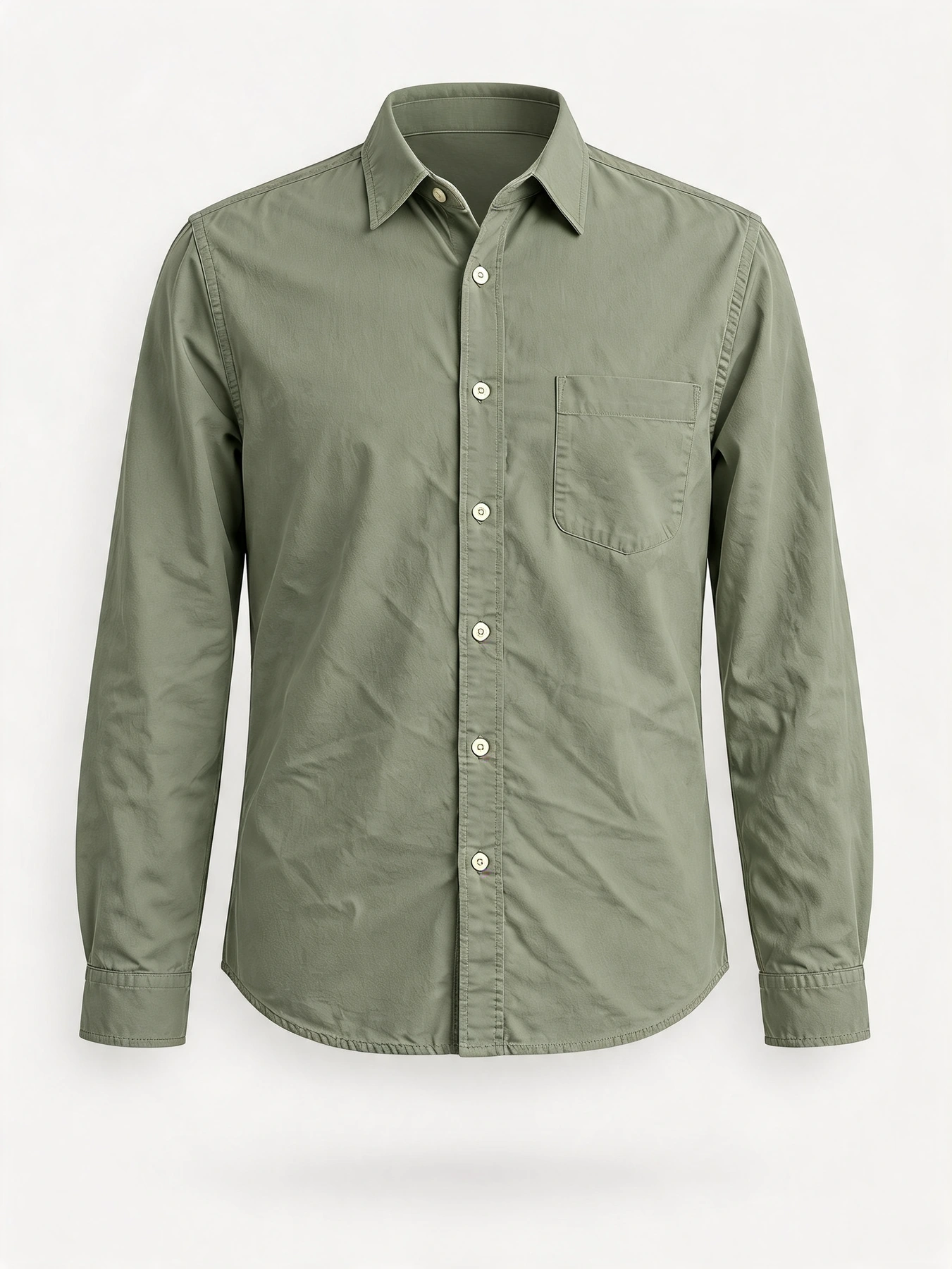
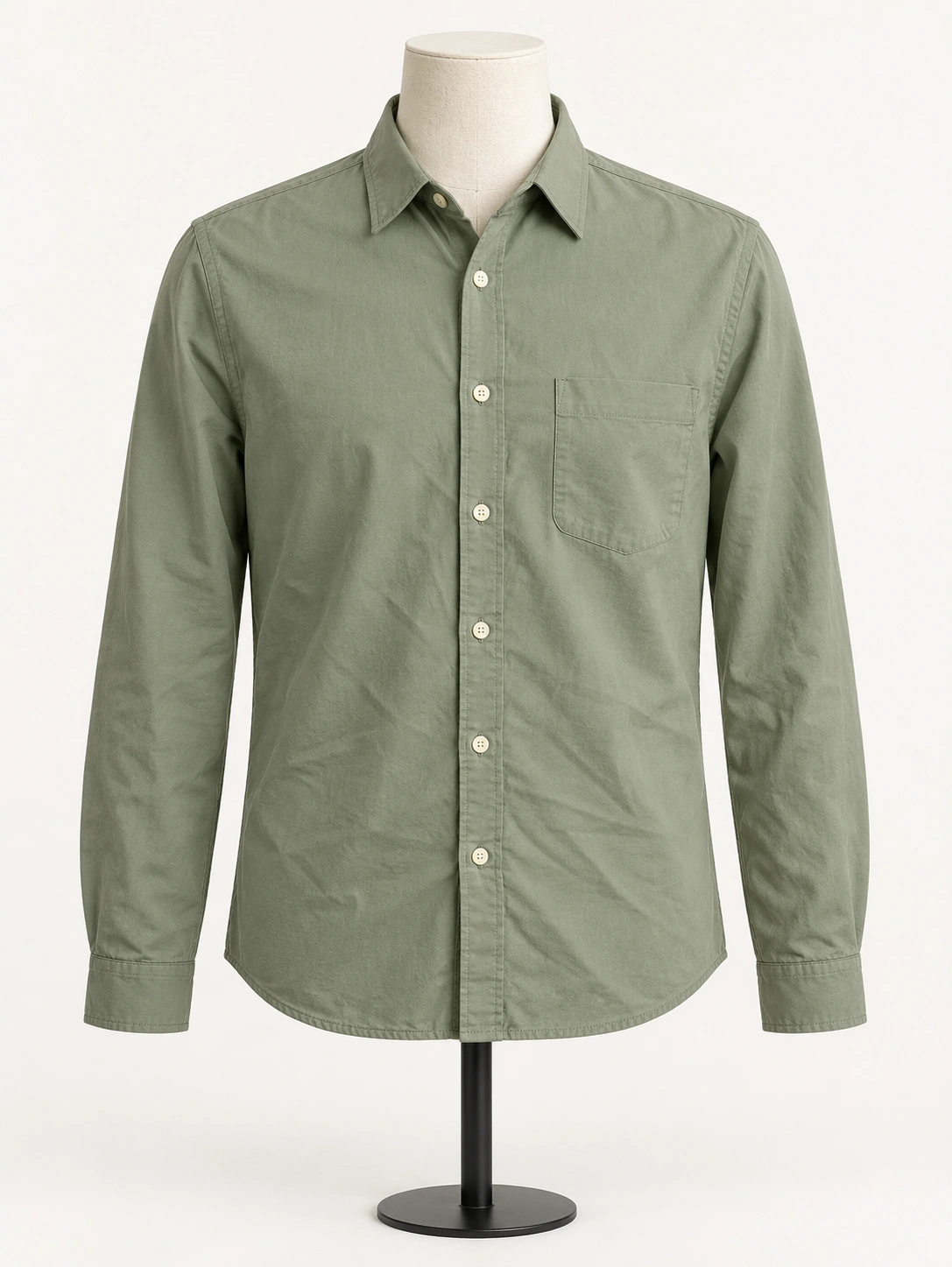 BeforeAI Ghost MannequinCreate an invisible-mannequin apparel listing image from a garment photo.Image
- After
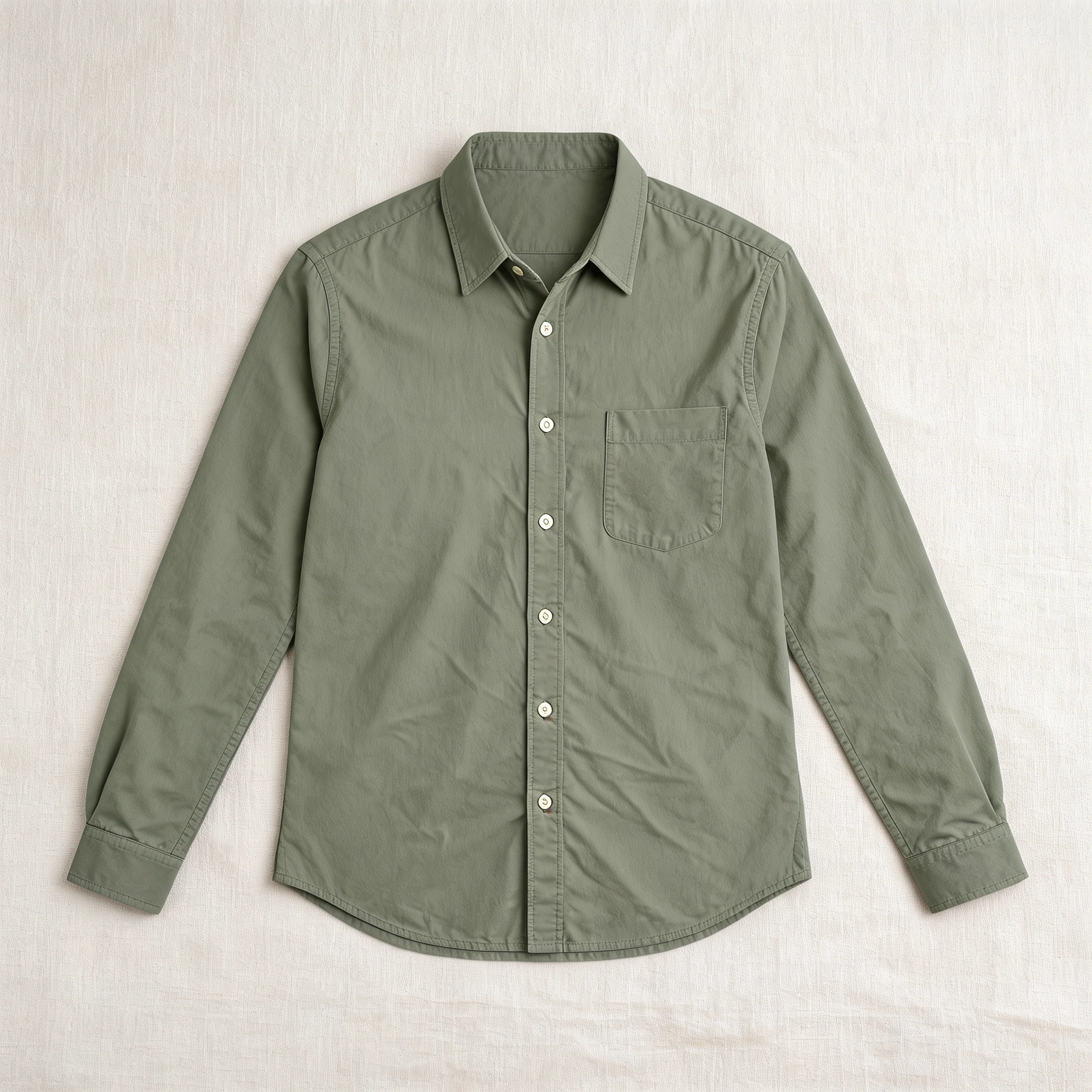
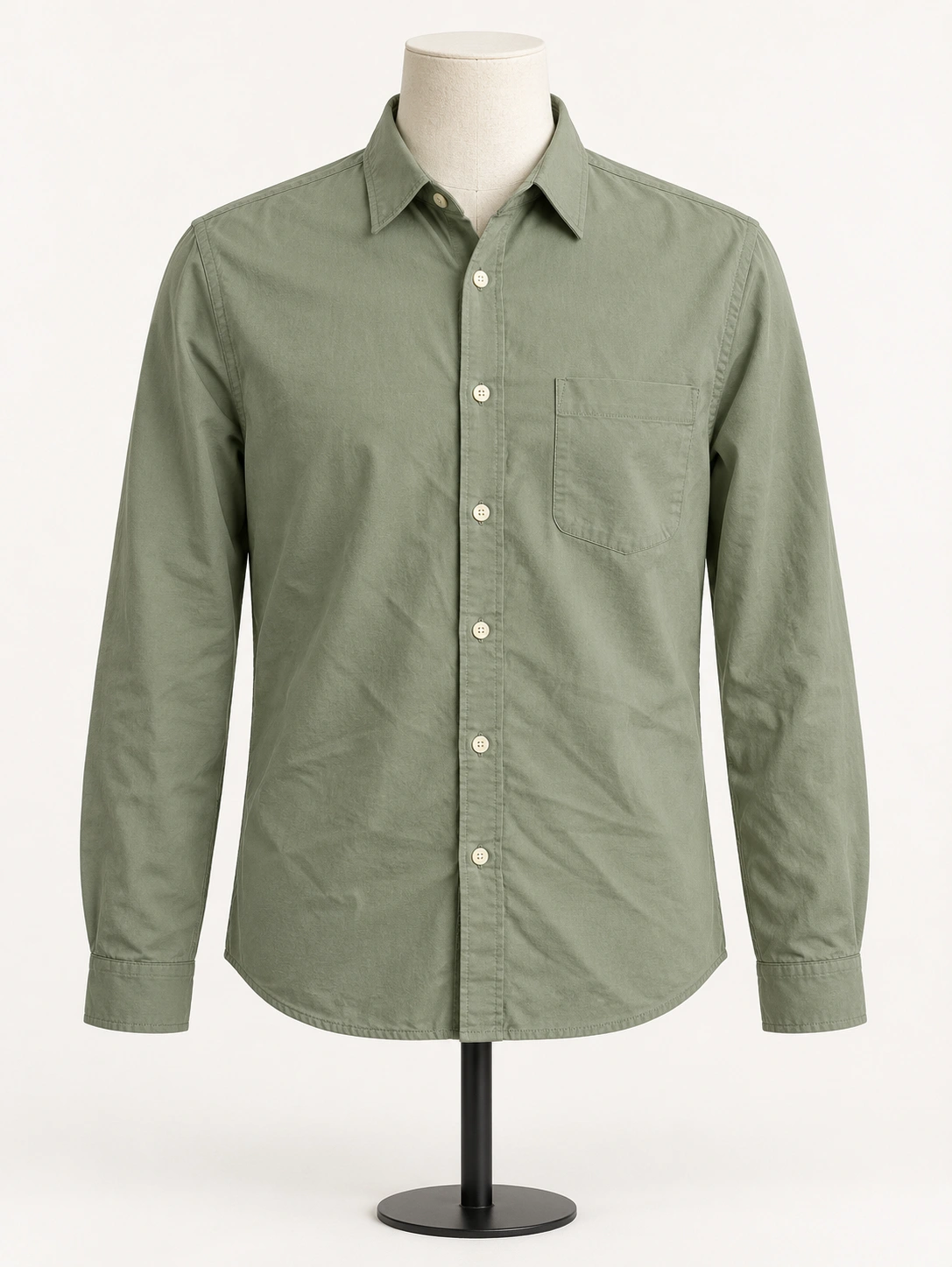 BeforeAI Flat LayCreate a top-down apparel or accessory listing photo. Choose arrangement, surface and props.Image
- After
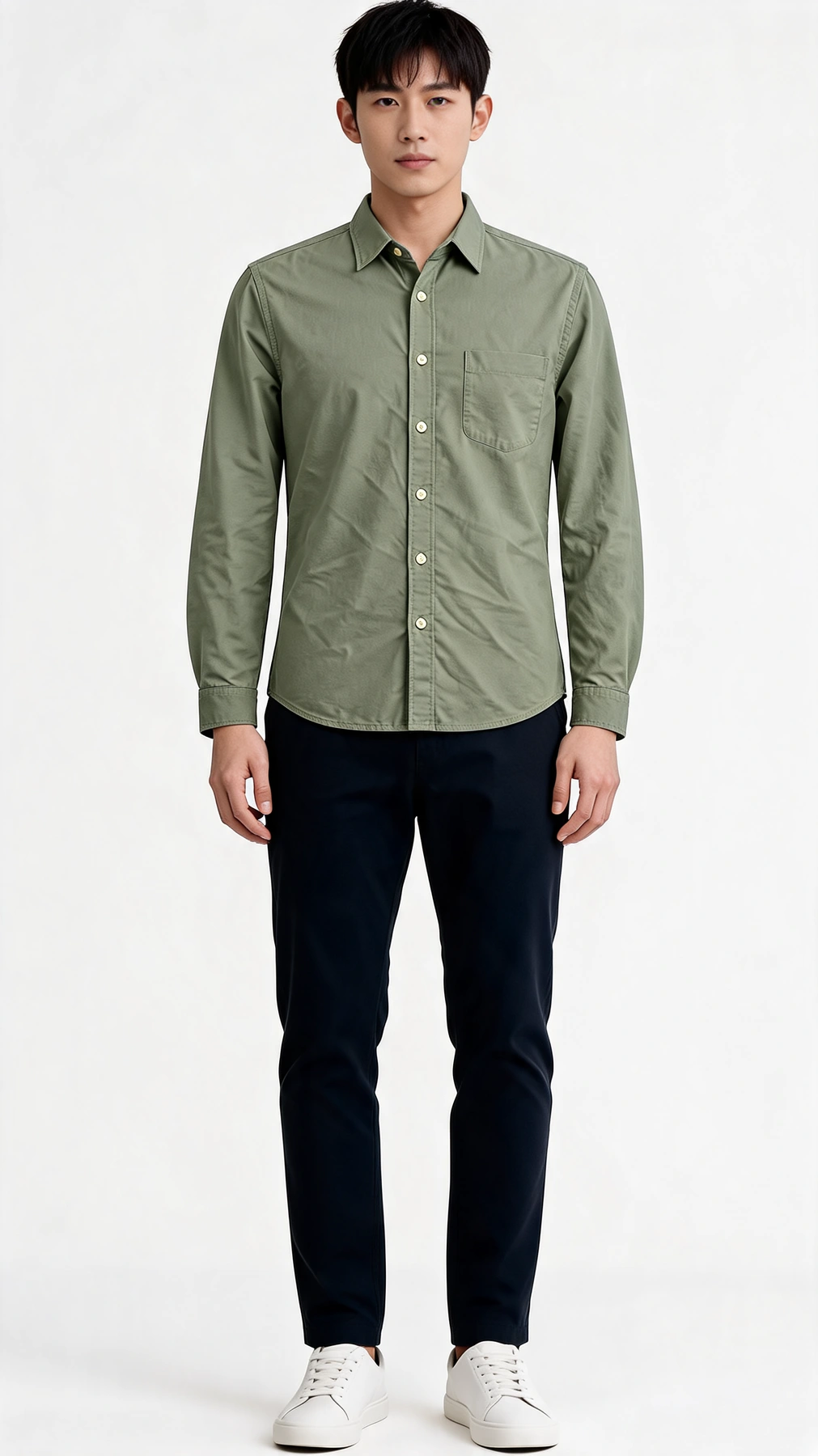
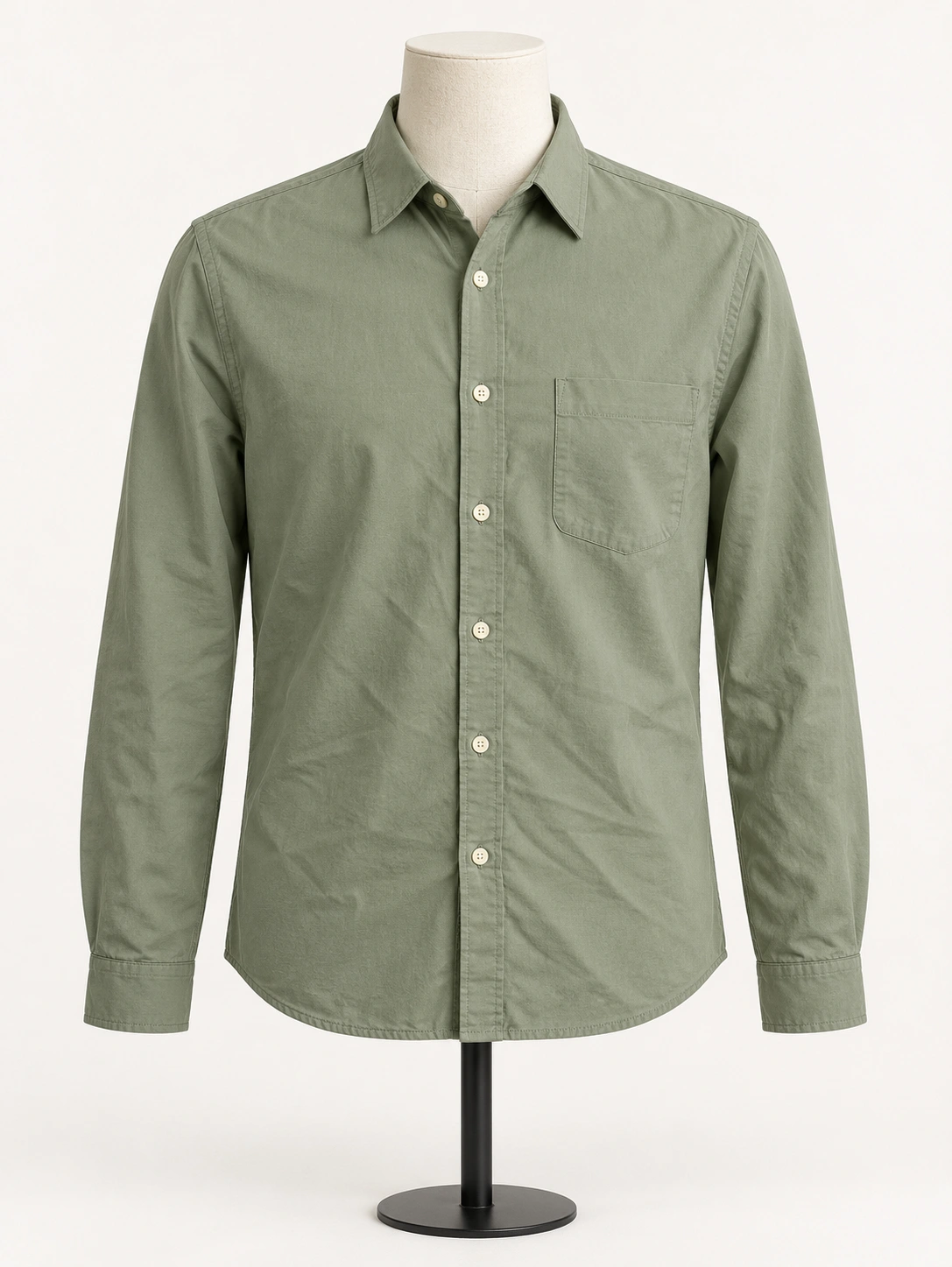 BeforeAI Fashion ModelTurn a garment flat-lay or ghost-mannequin photo into a catalog-grade on-model ecommerce shot. This is product display wear — not portrait virtual try-on.Image
Short product videos
Turn a reviewed product still into a short clip for ads or social. One image in, one video out.
A product photography workflow in four steps
Use only the steps your photo needs. From a chosen result, use Next tool to carry that image into the next step, then review the new output against your original.
Prepare a clean source
Keep an original copy. Retouch dust first if needed. Remove the background for a cutout; add Soft, Hard or Floating shadows only to a shadow-free cutout with enough margin.
Pick a scene task
Generate a background when you only have the product. Use Staging when you already have a room or tabletop photo. Use Relighting on an existing shot, or open Standard product photo for a clean square packshot.
Make only the variants you need
Use ghost mannequin, flat lay, AI fashion model or garment ironing for apparel. Preview up to six colors on one specified product region. Inspect seams, labels, material and the actual color before keeping a result.
Review, hand off and export
After each run, compare with your original. Use Next tool when you need another step, then choose listing export sizes on the result. Product image set is optional if you want several separate styles from one source in the hub.
Resources
Use only the steps your photo needs. From a chosen result, use Next tool to carry that image into the next step, then review the new output against your original.
Explore more solutions
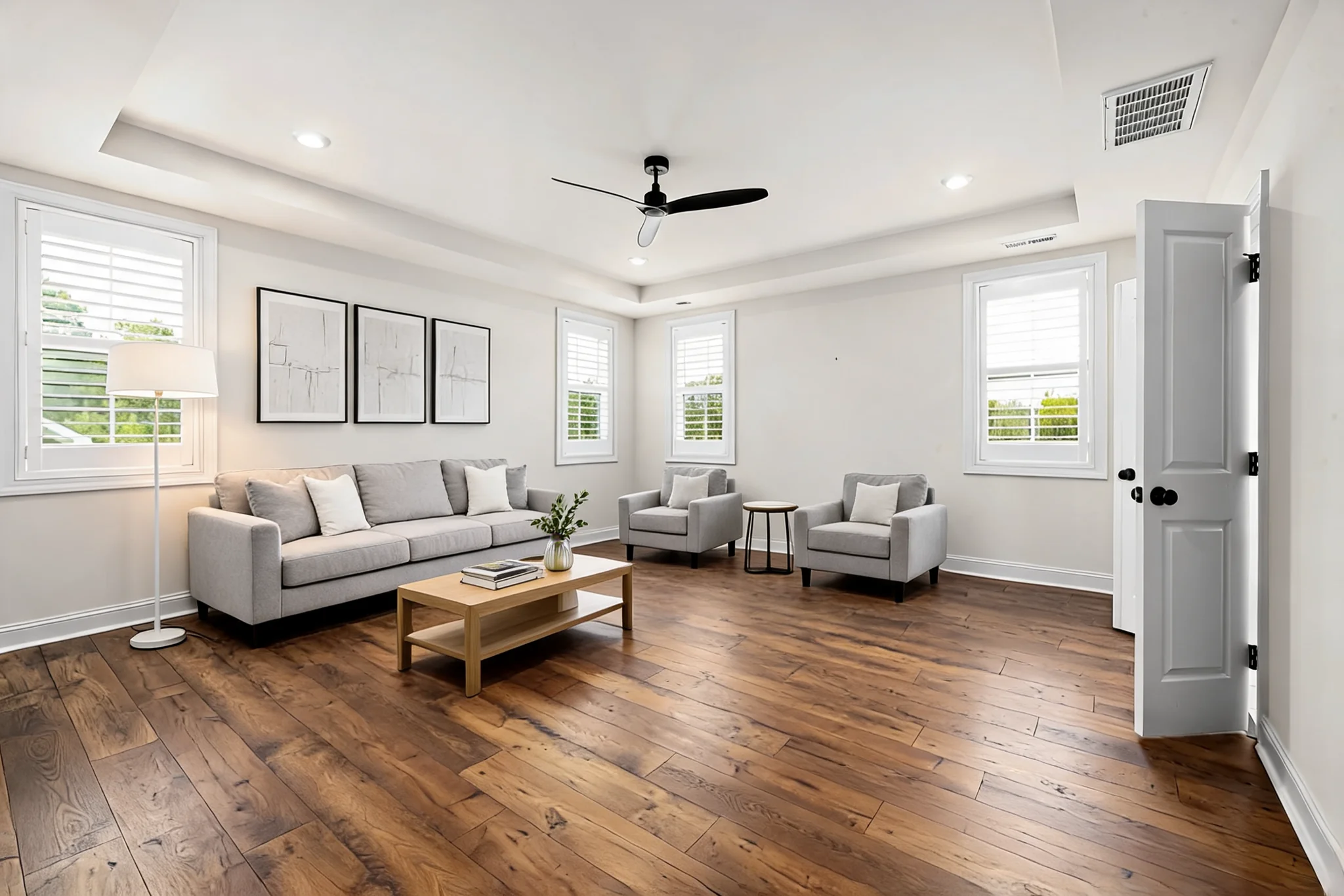 Architecture and RemodelRender architectural sketches, visualize furniture in rooms, and preview kitchen remodels, cabinet colors, wall and floor finishes, house exteriors and landscaping.
 Portrait photographyFrom family prints to career headshots, choose the next step for your own portraits: restore detail, refine light, polish skin and teeth, or finish a usable headshot or print.
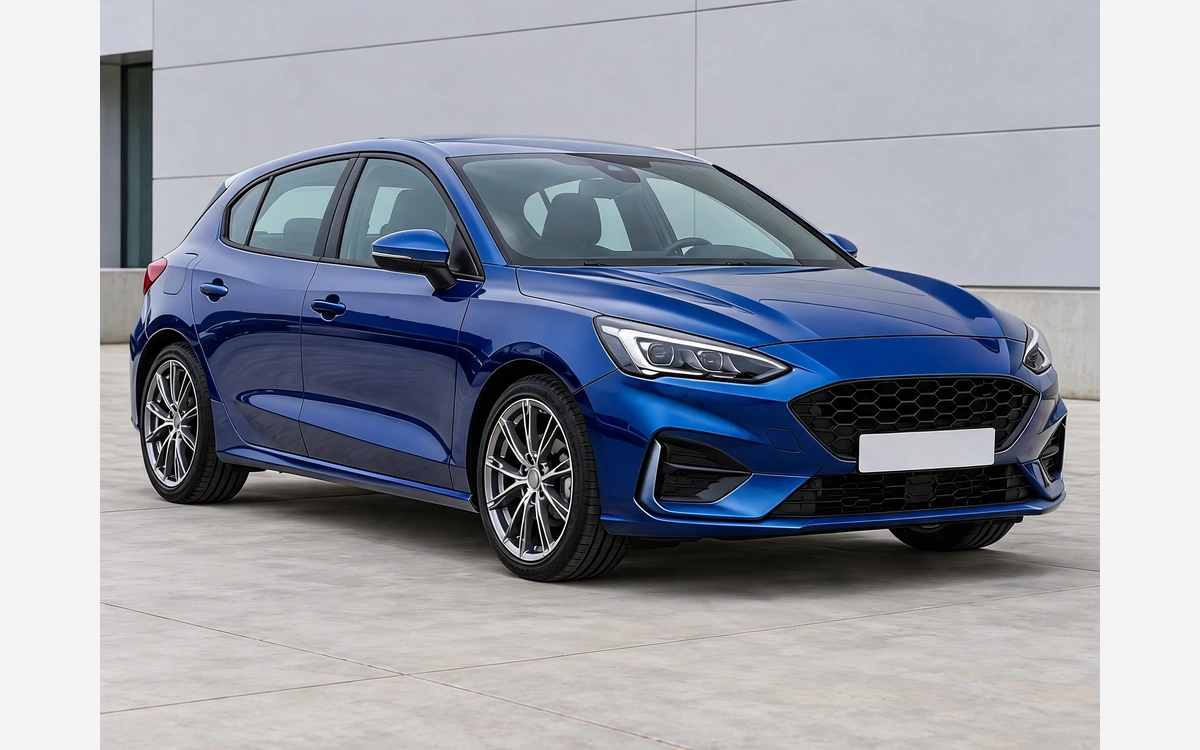 Car customizationStart with your car photo and choose a focused tool: paint, wraps, wheels, body parts, exterior details or studio rendering.
Product photography FAQs
Choose a starting point and understand what happens between generation, review and export.
Start with the image you need next
Use Product Photography for a single image or select Product image set to generate several full images. Keep the original photo for your final review.