Campaign hero assets
Produce large key visuals for ads, landing pages, and brand launches.
Flux 1.1 Pro Ultra delivers up to 4MP output with optional raw mode for photorealistic, less-processed results and strong prompt adherence.
Produce large key visuals for ads, landing pages, and brand launches.
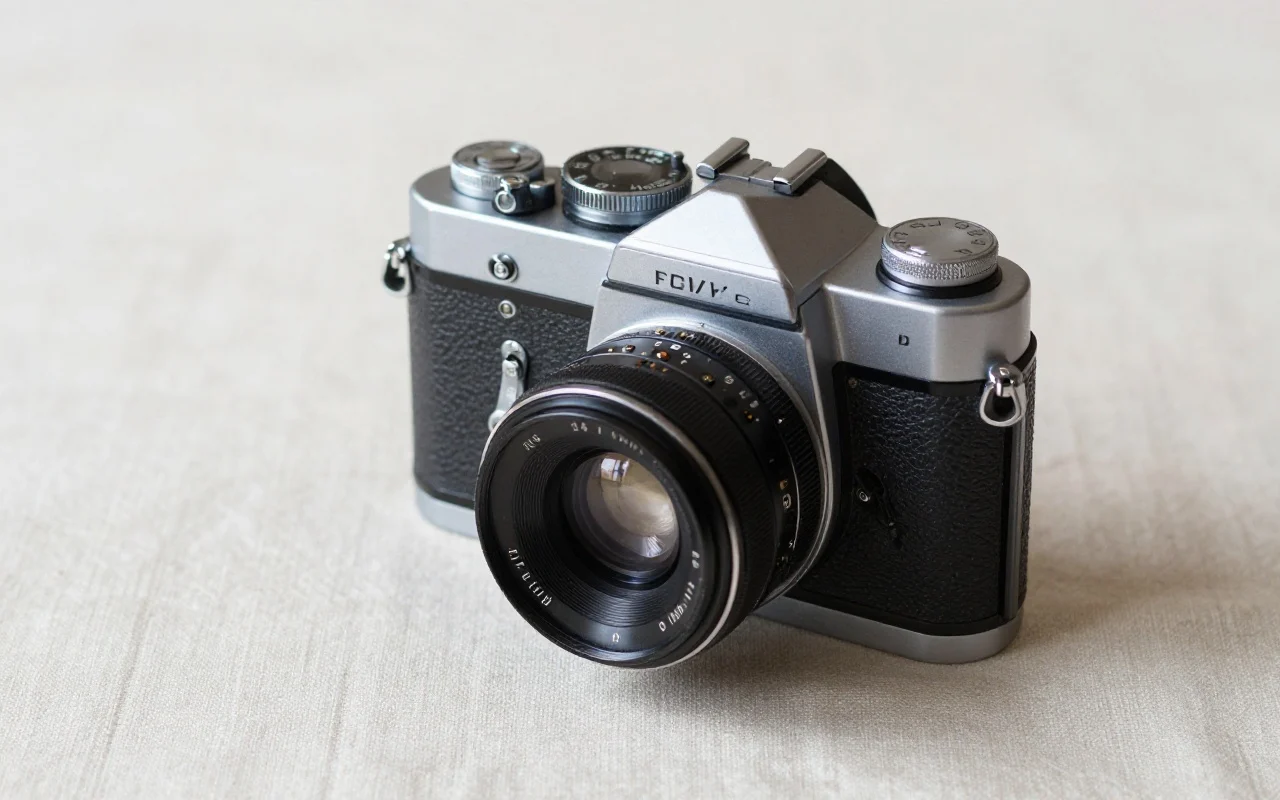
Use raw mode when the image should feel like authentic photography.
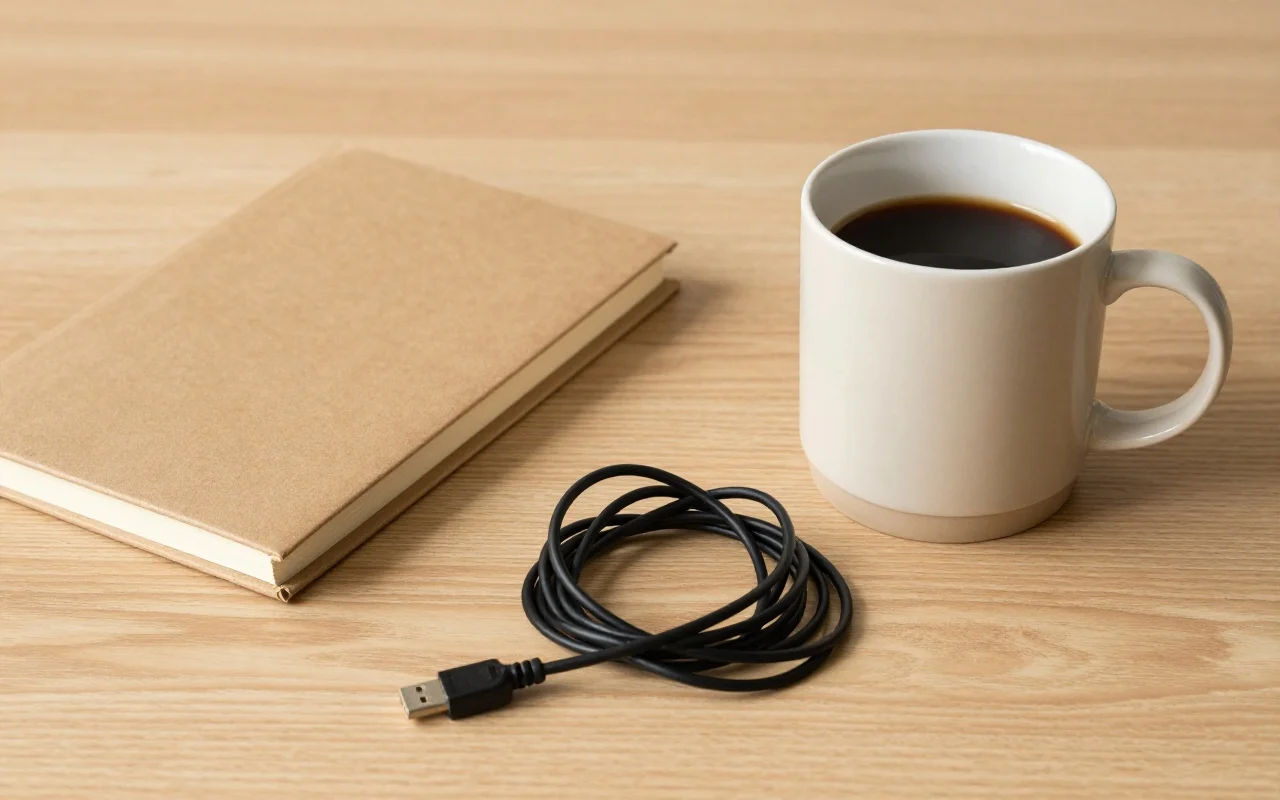
Render detailed product and lifestyle imagery at delivery quality.
Generate large, detail-rich images when the deliverable needs maximum resolution.
Turn on raw for a more natural, camera-like look with less synthetic polish.
Reliable interpretation of complex briefs, subjects, and stylistic constraints.
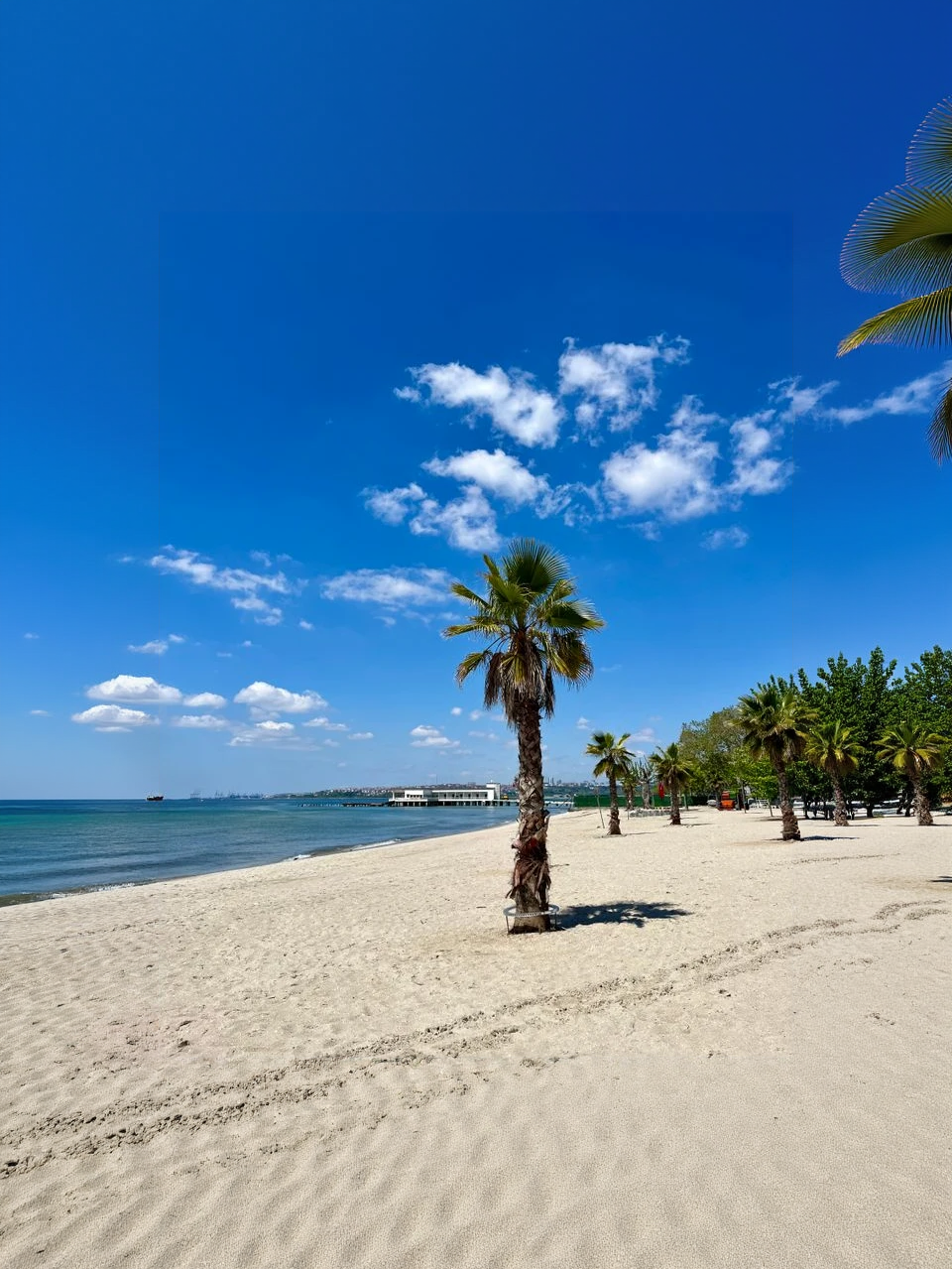
Ultra-wide and cinematic framing options for hero visuals and campaigns.
Guide composition with a reference image when the layout matters.
From Schnell drafts to Ultra resolution — compare classic Flux tiers and open the one that matches your workflow.
| Feature | Flux 1.1 Pro UltraCurrent | ||
|---|---|---|---|
| Best for | Flagship 4MP delivery | Daily production quality | Fastest drafts and volume |
| Speed | Moderate | Fast | Fastest |
| Detail / resolution | Up to 4MP | High (standard Pro) | Standard draft |
| Text-to-image | Excellent | Excellent | Strong (fast) |
| Image edit / prompt | Image prompt (Redux) | Image prompt (Redux) | Not supported |
| Prompt following | Very strong | Strong | Good for short prompts |
Enable raw mode when you want less AI gloss and more natural texture.
Ultra resolution rewards precise framing, lighting, and material notes.
Explore direction on Flux 1.1 Pro, then rerun winners on Ultra.
Pick the ratio early — Ultra is best when the final crop is known.
Understand the inputs, generation settings, and outputs supported by Flux 1.1 Pro Ultra.

Explore other models, or browse the full catalog.